
Step-by-step
Guides and Troubleshooting
Clear iMazing guides for backup, transfers, and fixing common issues on Mac or PC.
Setup
Getting Started with iMazing
- Download and install iMazing from the download page and verify the file hash.
- Connect your iPhone or iPad with a quality USB cable. On the device, tap Trust and enter your passcode.
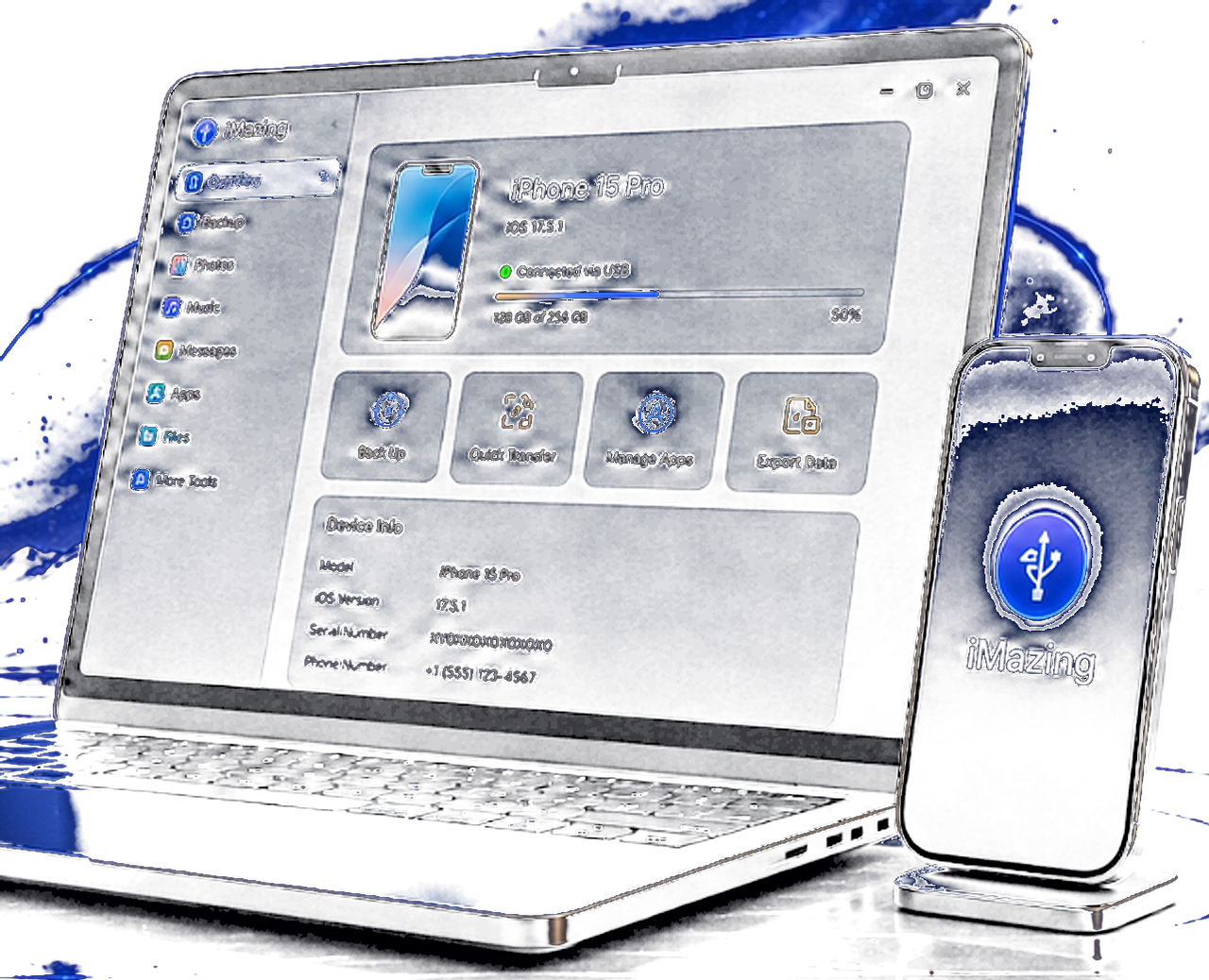
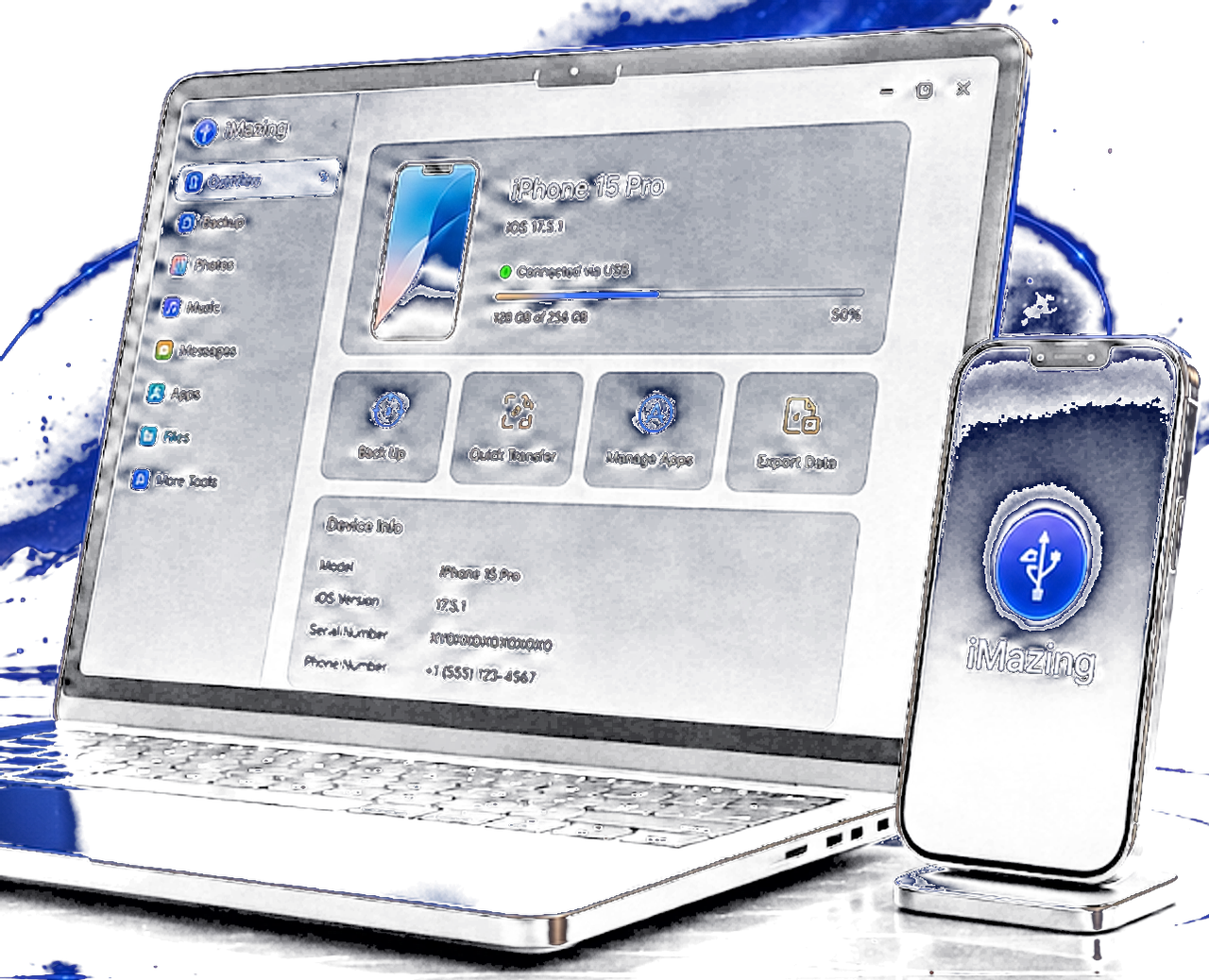
- Launch iMazing. Your device should appear in the sidebar with available actions.
- Optionally enable iMazing Mini for background wireless backups.
- Explore sections: Backup, Photos, Music, Messages, Files, and Apps.
Backup guide
How to Back Up iPhone or iPad to Mac or PC
- Select your device in iMazing.
- Open the Backup section and choose Back Up Now for an immediate archive.
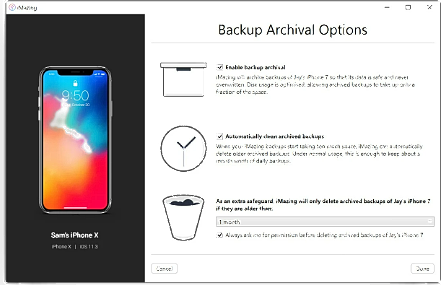
- Enable automatic backup in Options to schedule wireless backups.
- Turn on snapshot backups to keep multiple points in time.
- Set a backup location on an external drive or NAS if local disk space is limited.
- Use an encrypted backup password for Keychain and health data where supported.
Common backup problems
- Not enough disk space: Free space or change backup destination in preferences.
- Backup failed: Unlock the device, disable VPN, retry on USB instead of Wi-Fi.
- Stuck at 0%: Restart iMazing, replug cable, confirm Apple Mobile Device support on Windows.
Transfer guide
Transfer iPhone Text Messages to Computer
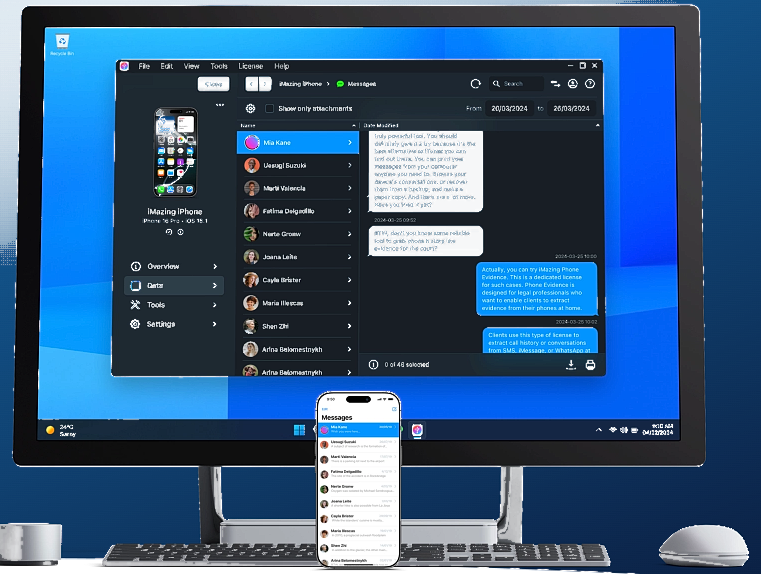
- Select Messages in the device or backup view.
- Choose conversations or export all threads.
- Pick format: PDF for reading, CSV or Excel for analysis, RSMF for legal workflows.
- Include attachments and metadata when prompted for complete archives.
- Save to a secure folder with appropriate access controls.
Transfer guide
Transfer Music from iPhone to Computer
- Open the Music section for your device.
- Select tracks, albums, or playlists to export to your Mac or PC.
- To copy music to the device, drag files into iMazing or use the import action.
- Note: DRM-protected Apple Music streaming files may not transfer. Owned or ripped files typically work.
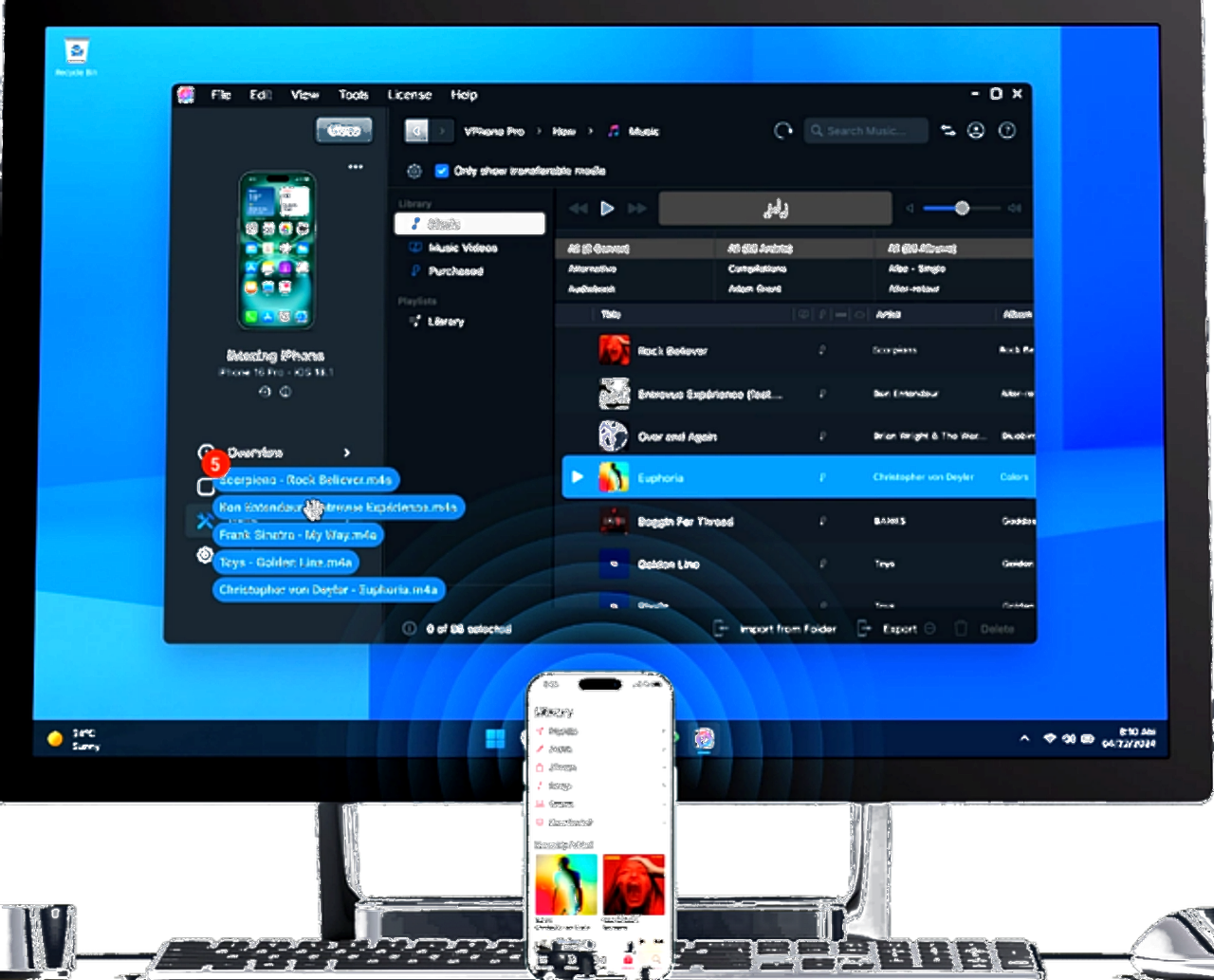
Photo guide
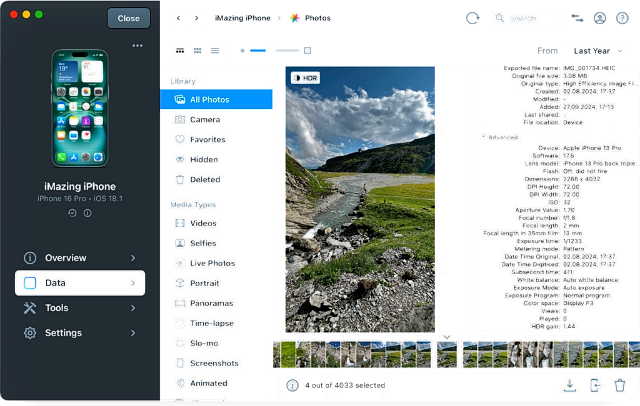
Manage and Transfer Camera Roll Export
- Open Photos on the device view.
- Browse albums, Camera Roll, or Smart Albums.
- Select items and click Export to save to a folder on your computer.
- Import new images by dragging into the iMazing window or using Import.
- Use USB for large libraries; Wi-Fi works when both devices share the same network and pairing is complete.
Export guide
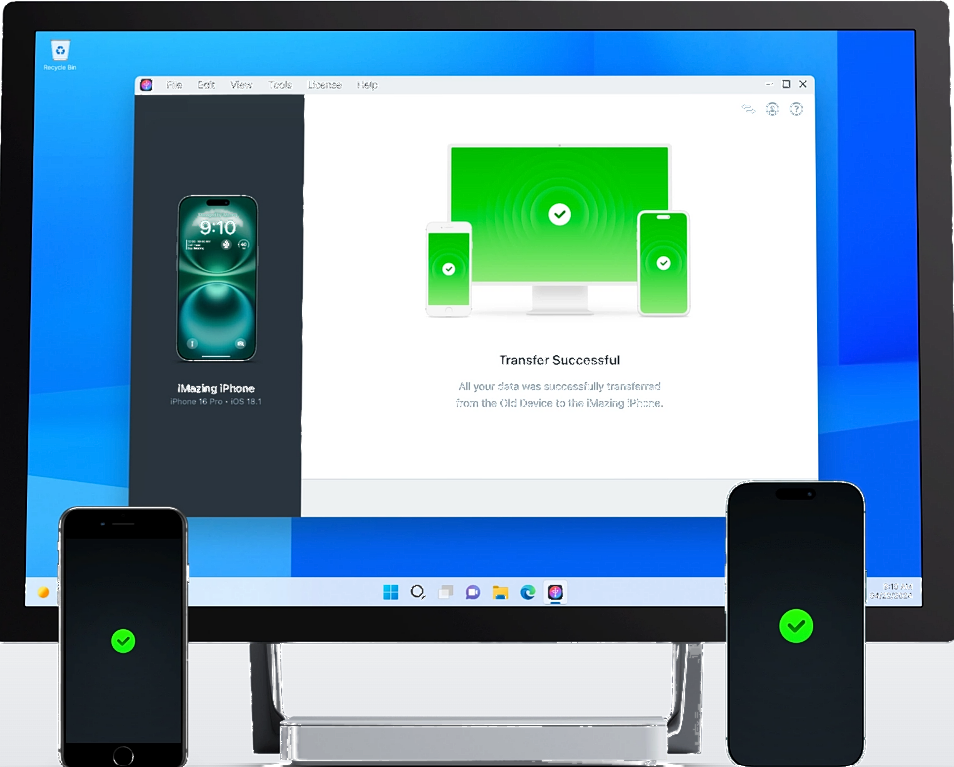
Export All iPhone Data to Mac or PC
- Create a fresh backup or select an existing backup archive.
- Use the export wizard to choose data types: messages, call logs, notes, Safari, contacts, and more.
- Pick output folders per category for organized migration or archival.
- For legal use, consider Phone Evidence workflows with chain-of-custody documentation.
Connectivity
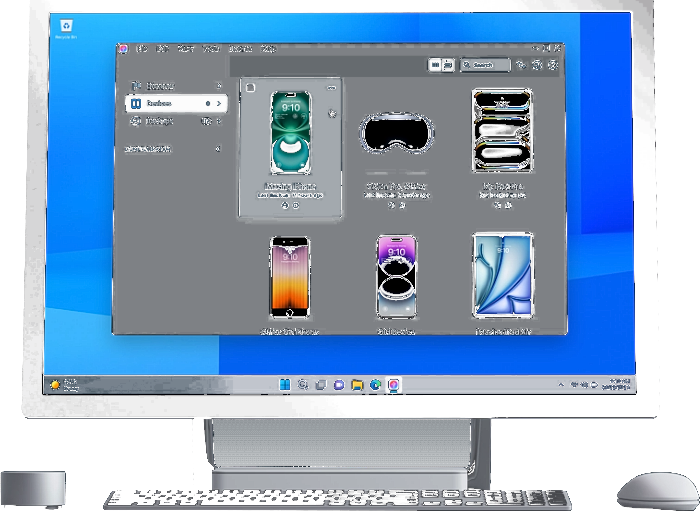
Wi-Fi Device Connectivity (iOS 26.x)
Recent iOS versions changed wireless discovery behavior. If your device does not appear over Wi-Fi:
- Complete at least one successful USB pairing first.
- Enable Wi-Fi sync in iMazing device options.
- Ensure Mac or PC and iPhone are on the same subnet without client isolation on guest networks.
- Update iMazing to the latest 3.5.x release for compatibility fixes.
Security
Antivirus Warnings on Install
Security software may flag iMazing because it accesses low-level device APIs and backup archives. This is not always malware.
- Confirm you downloaded from your trusted official link on download.html.
- Compare SHA-256 hash with the published value for that version.
- If the hash matches, report a false positive to your antivirus vendor.
- Avoid running cracked or repacked installers from unknown mirrors.
- After install, restore quarantined files only if hash verification passed.

Recommendations
Best Practices
- Run scheduled backups before major iOS upgrades.
- Store encrypted backups offline for sensitive personal or business data.
- Keep one USB cable dedicated to reliable device connections.
- Document export procedures if your organization requires compliance records.
- Read ethical usage guidelines before extracting third-party data.